


WordPress & WooCommerce
WordPress hacked: what should you do first?
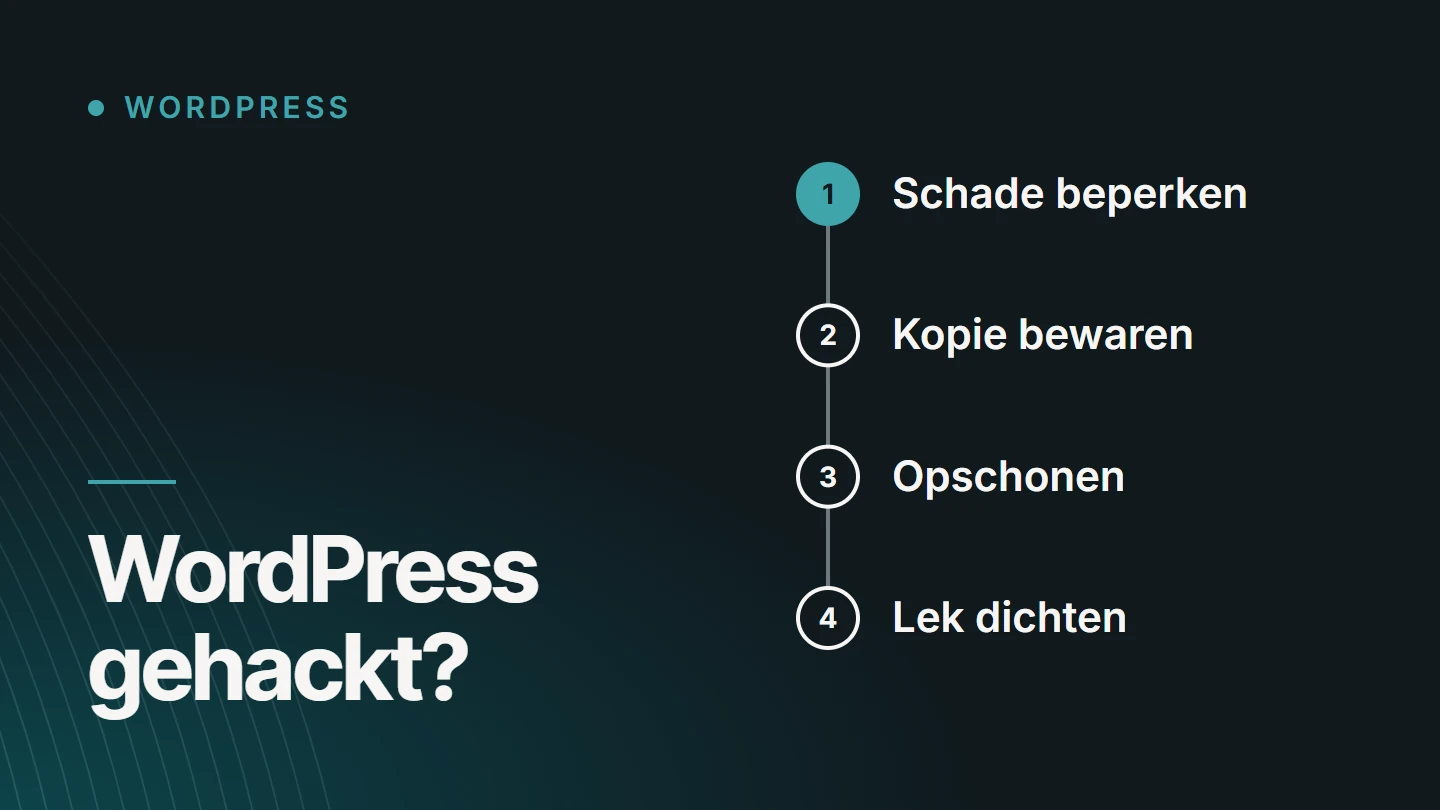
If your WordPress website has been hacked, work in a fixed order: limit the damage, notify your host, keep a copy of the current state, lock down access, clean up or restore a clean backup, and then close the vulnerability. If you start deleting straight away, you also erase the traces that show how it happened.
By Dries Nijs, Organic Web Specialist
Last updated: 19 November 2026
At a glance
What should you do first if your WordPress website has been hacked?
The first instinct is to get everything back online as quickly as possible. Understandable, but a website that is restored without finding the vulnerability can be reinfected days later. The goal of the first hour is therefore not to restore, but to limit the damage and record the situation.
Then come three questions. What has been affected? How did the attacker get in? And is customer or visitor data involved? The answer to that last question determines whether you need to do more than restore your website.
This article is intended for people who need to rescue their own website. It does not replace an investigation by a specialist when payments, customer accounts or sensitive data are at stake.
Signs
How do you know your WordPress website has been hacked?
Not every outage is a hack. A white screen after an update or a forgotten password usually has an innocent cause. These signs, however, do point to a break-in.
- A warning in the browser Visitors see a red screen saying the website is unsafe or deceptive.
- Redirects Your website sends visitors to an online shop, a gambling page or another website that is not yours.
- Unknown users The admin area lists administrators you did not create yourself.
- Strange search results Pages on your domain appear in Google in another language or about products you do not sell.
- A notification from your host Your hosting provider has blocked your account or reports suspicious files.
- A notification in Search Console The Security issues report shows that Google has found harmful content.
- Unknown files Your website’s folders contain files with random names, or existing files have recently been modified.
- Email from your domain Your website or your mailbox sends messages you did not write yourself.
In doubt? Then treat it as a hack until proven otherwise. Being careful costs an hour; a missed infection costs far more.
First aid
The first hour: eight steps in order
Stick to the order. Each step makes the next one safer.
01
Record what you see
Take screenshots of the warning, the redirect or the strange content, and note the time. You will need that information later, for the investigation and possibly for a report.
02
Limit the damage
Put the website into maintenance mode or have it taken offline temporarily, especially if visitors are being redirected or if it runs a shop with payments. Better an hour offline than sending visitors to a harmful page.
03
Notify your hosting provider
Your host sees what you do not: the server log files, other infected websites on the same account and the backups it keeps itself. Also ask whether the vulnerability could lie with the server.
04
Keep a copy of the current state
Make a copy of the files and the database as they are now, and store it separately with a clear label saying it is infected. This is not a backup to restore, but the material for working out what happened.
05
Change all passwords
For all administrators in WordPress, the hosting panel, file access, the database and the email addresses linked to them. Use a different, long password everywhere and log out all active sessions.
06
Check the users
Remove accounts you do not recognise, and give no one more permissions than necessary. Also check that the email address of your own administrator account has not been changed.
07
Scan the website
Run a malware scan of the files and the database, through your host or with a security plugin from a well-known vendor. A scan finds a lot, but not everything: treat the result as a starting point.
08
Decide how to restore
Restore a clean backup or clean up the existing website. The next section explains which route suits you.
Recovery
Clean up or restore a backup?
There are two routes back to a clean website. They are not mutually exclusive: often you restore a backup and then check it anyway.
| Question | Restore a clean backup | Clean up the existing website |
|---|---|---|
| When | You have a backup from before the infection | There is no usable backup, or it is too old |
| Benefits | Quick, and you know what you are getting back | You lose no recent content or orders |
| Risk | The vulnerability is in the backup too: without further action, you are vulnerable again | A backdoor you overlook lets the attacker back in |
| What you lose | Everything added after the backup | Nothing, if it is done thoroughly |
| What is always needed | Update, change passwords and close the vulnerability | Replace core files, theme and plugins with fresh copies from the official source |
If you do not know when the infection started, be careful with a recent backup. Malicious code can sit there for weeks before it becomes visible.
WordPress itself describes the steps to take after a break-in in the official documentation article FAQ: My site was hacked.
Data
Is personal data involved?
If your website stores data about people, such as customer accounts, orders, newsletter sign-ups or form submissions, a hack may also be a data breach. That is a different situation from a website that only contains public content.
Not every hacked website has to be reported. The notification obligation under the GDPR applies only to a personal data breach: when people’s data could have been accessed, copied, altered or lost. A hack that only affected public content does not fall under it.
If there is such a breach, the controller, meaning the business that decides about the data, reports it to the supervisory authority: without undue delay and, where feasible, no later than 72 hours after becoming aware of it. No notification is required if the breach is unlikely to result in a risk to the people concerned. In Belgium, the supervisory authority is the Belgian Data Protection Authority. If the breach is likely to result in a high risk, the people concerned must also be informed. In addition, every breach should be documented internally, even if you do not report it.
Whether that applies in your case depends on which data was affected and what could be done with it. This article is not legal advice. If you suspect a personal data breach, contact your data protection officer (DPO) or a legal adviser, and do not wait until the website has been restored: the deadline runs from the moment you become aware of the breach. (Source: Articles 33 and 34 of the GDPR and the Belgian Data Protection Authority, accessed on 17 November 2026.)
Pitfalls
What to avoid
- Responding to a message from the attacker. Paying or negotiating gives you no guarantee whatsoever.
- Removing only the visible damage. The strange page is the symptom, not the cause.
- Restoring a backup and carrying on. Without updates and new passwords, the same door is still open.
- Throwing away the infected copy. Without that material, no one can work out what happened.
- Keeping customers in the dark when their data has been affected. That may breach your obligations, and it can damage trust more than the hack itself.
A hack is unpleasant, but it does not have to be the end of a website. The damage is determined mainly by what does and does not happen in the first few hours.
Next
How do you prevent another hack?
No website is unbreakable. But you can greatly reduce the risk and, above all, make sure that next time, recovery is a matter of minutes.
- Keep WordPress, the theme and all plugins up to date.
- Remove plugins and themes you do not use, even if they are deactivated.
- Only install software from the official source or from the developer itself.
- Use a unique, long password for each account, and a password manager.
- Enable two-factor authentication for all administrators.
- Give each user only the role they need.
- Store backups away from the website’s server, and test that you can restore them.
- Check whether your PHP version is still supported.
- Have changes to files and new administrators monitored.
- Agree who is responsible when something goes wrong.
Most of these points are not a one-off fix, but recurring work. That is exactly what WordPress maintenance involves.
Help
When should you get help?
When an online shop or customer data is involved, when the infection returns after a first clean-up, when you have no usable backup, or when you are not sure how the attacker got in. In all those cases, certainty is worth more than speed.
Always contact your hosting provider first. To clean up the website itself and close the vulnerability, you need someone who can read the code.
FAQ
Frequently asked questions about a hacked WordPress website
How can you find out whether you have been hacked?
Look out for warnings in the browser, redirects to other websites, unknown administrators, strange pages on your domain in Google and notifications from your host or in Search Console. A malware scan through your host or a security plugin can confirm the suspicion.
What should you do if your website has been hacked?
First limit the damage with maintenance mode, notify your host, keep a copy of the infected state and change all passwords. Then restore a clean backup or have the website cleaned up, update everything and find out how the attacker got in.
How secure is WordPress?
The WordPress core is actively maintained and receives security updates; how that works is explained on the WordPress security page. The risks lie mainly in what surrounds it: outdated plugins and themes, weak passwords and software from untrustworthy sources.
Why can I no longer log in to WordPress?
That need not be a hack. A forgotten password, a conflict after an update or a security measure by your host can have the same effect. If your password or your account’s email address has been changed without you doing it yourself, however, a break-in is likely.
Should I take my website offline?
Temporarily, when visitors are at risk: in the case of redirects, harmful downloads or an infected checkout. Maintenance mode is then the safest choice. Do leave the files themselves in place until a copy has been made.
Can a hack come back after cleaning up?
Yes, if the vulnerability has not been closed or a backdoor has been left behind. That is why updating, new passwords and replacing core files, theme and plugins with fresh copies are always part of the recovery.
Does the warning in Google disappear by itself?
Not immediately. Once the website is clean, you can request a review in Search Console. Google then checks the website again and removes the warning when it no longer finds harmful content.
Further reading
The related service
WordPress maintenance as a service
Updates, tested backups and monitoring reduce the chance of a hack and shorten recovery if it does happen. The service page explains what maintenance involves.

About the author
Dries Nijs, Organic Web Specialist
I am Dries Nijs, a developer from Maasmechelen. I have been building for the web since the 1990s and today work in WordPress, React and Next.js. I look at security as a developer: in the code, the access and the updates. MadeByDries is the personal brand under which I work.
Has your website been hacked and you are stuck?
Notify your host first. Then send me what you see and what has already happened, and we will look at the next step.